> ## Documentation Index
> Fetch the complete documentation index at: https://turnkey-0e7c1f5b-ethan-captcha-protection.mintlify.site/llms.txt
> Use this file to discover all available pages before exploring further.
# Turnkey Verifiable Cloud quickstart
> Run any code in isolated, verifiable secure enclaves powered by Turnkey’s trusted infrastructure.
Turnkey Verifiable Cloud is currently in Private Beta. Join the waitlist [here](https://www.turnkey.com/turnkey-verifiable-cloud#waitlist).
## Prerequisites
This guide assumes you've been enabled for Turnkey Verifiable Cloud, and you've completed the steps to create an account and an organization
as described in the [account setup](/getting-started/quickstart) section.
## Installation
Install the TVC CLI in the [Rust SDK](https://github.com/tkhq/rust-sdk) to get started:
```bash theme={null}
git clone git@github.com:tkhq/rust-sdk.git
cd rust-sdk
cargo install --path tvc
```
## Create your first verifiable app
With your new organization ID ready, login through the CLI.
```bash theme={null}
tvc login
```
You will be asked to paste in your organization ID, and prompted to add a new generated API key to your organization.
This step generates an operator P256 keypair locally for you. It is stored in `~/.config/turnkey/orgs//operator.json`.
The public key will be used in the following steps.
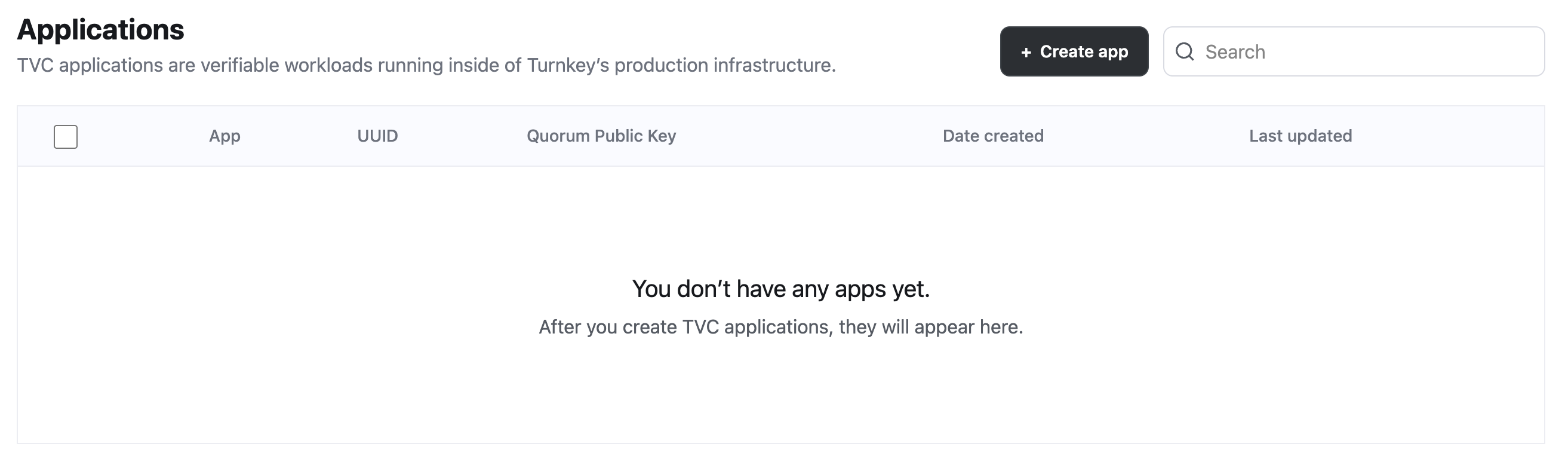
Visit the [TVC dashboard](https://app.turnkey.com/dashboard/tvc) and click on "Create app".
 A modal should appear:
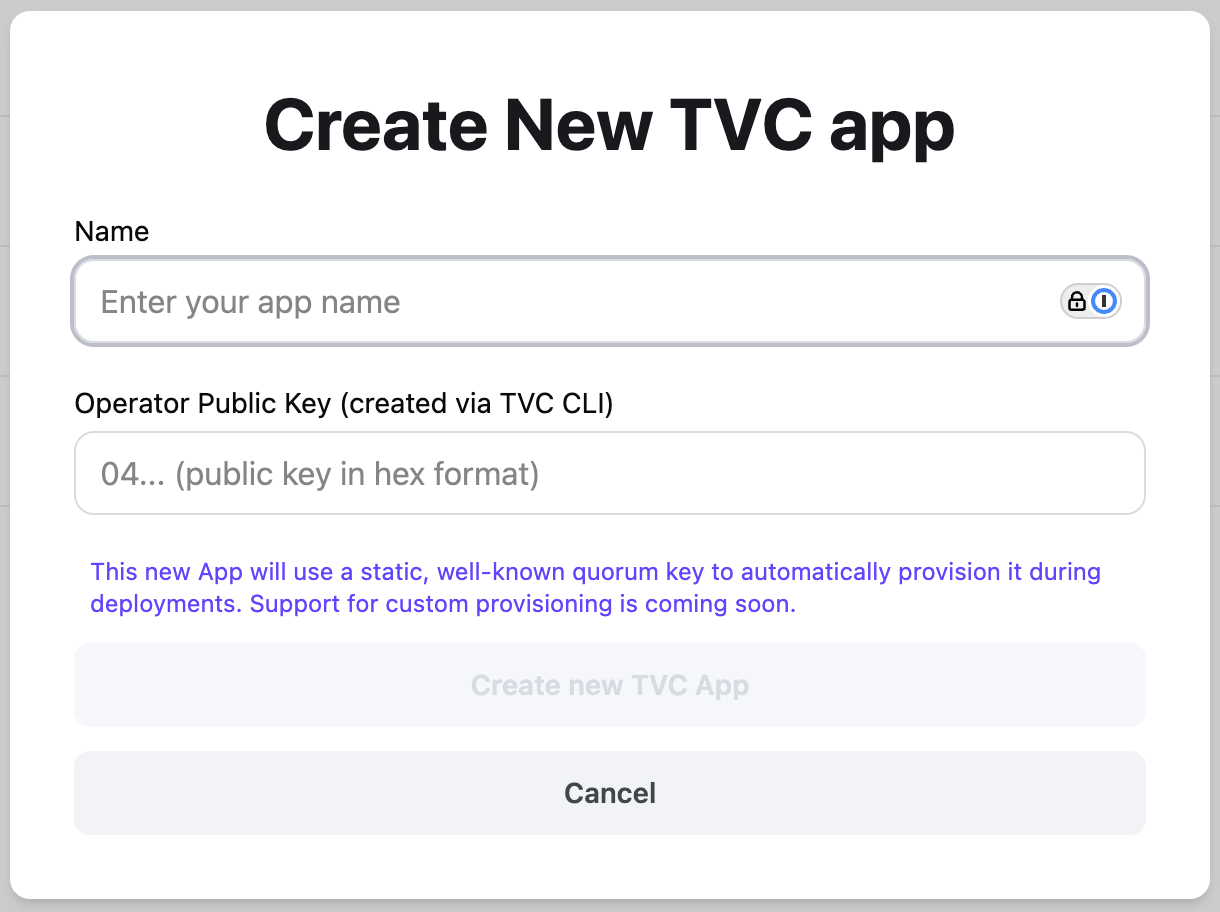 Name your app something identifiable; for this demo it can be `"TVC Hello World"`.
Paste in your operator public key from the login step, then click "Create new TVC App" to create your app.
Create a local app template by running
```bash theme={null}
tvc app init --output .json
```
This step is purely local, and generates an editable json template for your app to be used during creation.
Your template will look something like this when first generated:
```json theme={null}
{
"name": "",
"quorumPublicKey": KNOWN_QUORUM_KEY,
"externalConnectivity": false,
"manifestSetId": null,
"manifestSetParams": {
"name": "",
"threshold": 1,
"newOperators": [
{
"name": "operator-1",
"publicKey": PUBLIC_KEY_AUTOPOPULATED_FROM_LOGIN
}
],
"existingOperatorIds": []
}
}
```
Name your app something identifiable; for this demo it can be `"TVC Hello World"`.
Your manifest set is currently just the public key generated during login;
give it an easy to remember name, such as `"TVC Manifest"`.
The CLI has also automatically populated this template with a known quorum key, which is sufficient for
running verifiable code but not advised for encrypting sensitive data.
Create your app in TVC by running
```bash theme={null}
tvc app create my-app-template.json
```
This creates your app, and saves its quorum key and manifest settings to the Turnkey Verifiable Cloud platform.
Check out your new app on the [TVC dashboard](https://app.turnkey.com/dashboard/tvc).
Once your app is created, click into it on the [dashboard](https://app.turnkey.com/dashboard/tvc). Click on "Create deployment"
to start a new deployment for your app.
Name your app something identifiable; for this demo it can be `"TVC Hello World"`.
Paste in your operator public key from the login step, then click "Create new TVC App" to create your app.
Create a local app template by running
```bash theme={null}
tvc app init --output .json
```
This step is purely local, and generates an editable json template for your app to be used during creation.
Your template will look something like this when first generated:
```json theme={null}
{
"name": "",
"quorumPublicKey": KNOWN_QUORUM_KEY,
"externalConnectivity": false,
"manifestSetId": null,
"manifestSetParams": {
"name": "",
"threshold": 1,
"newOperators": [
{
"name": "operator-1",
"publicKey": PUBLIC_KEY_AUTOPOPULATED_FROM_LOGIN
}
],
"existingOperatorIds": []
}
}
```
Name your app something identifiable; for this demo it can be `"TVC Hello World"`.
Your manifest set is currently just the public key generated during login;
give it an easy to remember name, such as `"TVC Manifest"`.
The CLI has also automatically populated this template with a known quorum key, which is sufficient for
running verifiable code but not advised for encrypting sensitive data.
Create your app in TVC by running
```bash theme={null}
tvc app create my-app-template.json
```
This creates your app, and saves its quorum key and manifest settings to the Turnkey Verifiable Cloud platform.
Check out your new app on the [TVC dashboard](https://app.turnkey.com/dashboard/tvc).
Once your app is created, click into it on the [dashboard](https://app.turnkey.com/dashboard/tvc). Click on "Create deployment"
to start a new deployment for your app.
 This should open a modal with all your deployment settings:
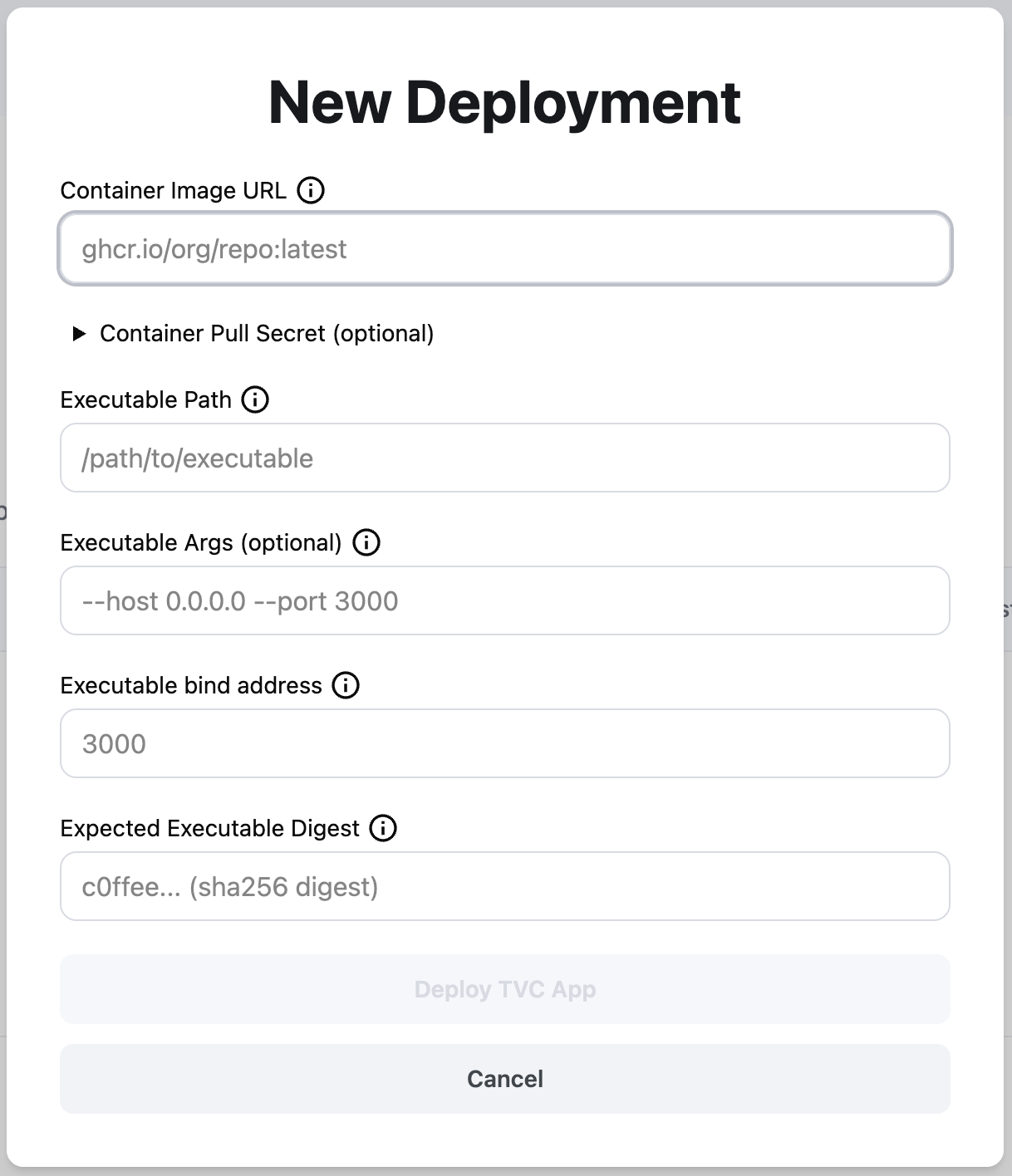 If you do not have your own app, try our helloworld template:
* **Container Image URL**
```
ghcr.io/tkhq/helloworld@sha256:f8132a6236609e4c67d9d29e5694989f18e528240844638e850897ee6319676d
```
* **Executable Path**: `/helloworld`
* **Executable Args**: leave blank
* **Executable bind address**: `3000`
* **Executable digest**: same as the sha256 hash in the container URL
```
f8132a6236609e4c67d9d29e5694989f18e528240844638e850897ee6319676d
```
If you are bringing your own private container, TVC supports uploading pull secrets by encrypting them to
a known public key. As a security measure, it also compares the executable digest to the pulled binary to ensure
TVC is running the exact code you want.
When ready, click "Deploy TVC App"!
Start with this local-only step, which generates a deployment template:
```bash theme={null}
tvc deploy init
```
The generated JSON file is named by its time of creation, but you can name it anything by specifying
a name after the `--output` flag. Open it and fill in each field:
* `appId` is populated with the last app you created. You may edit it to be the id of any app you've created in the past.
* `qosVersion`: use `"v2026.2.6"`
* `pivotContainerImageUrl`: link to a public image. For this demo, feel free to use
```json theme={null}
"ghcr.io/tkhq/helloworld@sha256:f8132a6236609e4c67d9d29e5694989f18e528240844638e850897ee6319676d"
```
* `pivotPath`: location of your binary in the container. Use `"/helloworld"` for the demo app.
* `pivotArgs`: leave this empty unless you have arguments to pass to your application.
* `expectedPivotDigest`: for the demo, use
```json theme={null}
"f8132a6236609e4c67d9d29e5694989f18e528240844638e850897ee6319676d"
```
For an arbitrary app, compute the expected digest with
```bash theme={null}
docker create --name tmp-extract /bin/true \
&& docker cp tmp-extract:/path/to/binary ./binary \
&& docker rm tmp-extract
sha256sum ./binary
```
* `pivotContainerEncryptedPullSecret`: if you don't have a pull secret to the pivot container, delete this field.
Deploy to TVC by running
```bash theme={null}
tvc deploy create deploy-YYYY-MM-DD.json [--pull-secret .json]
```
Find the newly created deployment by clicking into your app on the [TVC dashboard](https://app.turnkey.com/dashboard/tvc).
By design, your deployment is not live yet. TVC requires approvals by the manifest set to fully deploy your application.
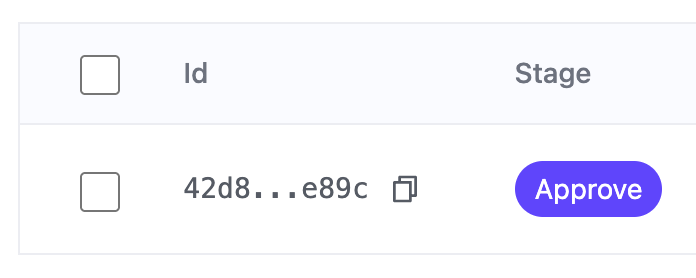
Your app should be at the `Approve` stage on the dashboard:
If you do not have your own app, try our helloworld template:
* **Container Image URL**
```
ghcr.io/tkhq/helloworld@sha256:f8132a6236609e4c67d9d29e5694989f18e528240844638e850897ee6319676d
```
* **Executable Path**: `/helloworld`
* **Executable Args**: leave blank
* **Executable bind address**: `3000`
* **Executable digest**: same as the sha256 hash in the container URL
```
f8132a6236609e4c67d9d29e5694989f18e528240844638e850897ee6319676d
```
If you are bringing your own private container, TVC supports uploading pull secrets by encrypting them to
a known public key. As a security measure, it also compares the executable digest to the pulled binary to ensure
TVC is running the exact code you want.
When ready, click "Deploy TVC App"!
Start with this local-only step, which generates a deployment template:
```bash theme={null}
tvc deploy init
```
The generated JSON file is named by its time of creation, but you can name it anything by specifying
a name after the `--output` flag. Open it and fill in each field:
* `appId` is populated with the last app you created. You may edit it to be the id of any app you've created in the past.
* `qosVersion`: use `"v2026.2.6"`
* `pivotContainerImageUrl`: link to a public image. For this demo, feel free to use
```json theme={null}
"ghcr.io/tkhq/helloworld@sha256:f8132a6236609e4c67d9d29e5694989f18e528240844638e850897ee6319676d"
```
* `pivotPath`: location of your binary in the container. Use `"/helloworld"` for the demo app.
* `pivotArgs`: leave this empty unless you have arguments to pass to your application.
* `expectedPivotDigest`: for the demo, use
```json theme={null}
"f8132a6236609e4c67d9d29e5694989f18e528240844638e850897ee6319676d"
```
For an arbitrary app, compute the expected digest with
```bash theme={null}
docker create --name tmp-extract /bin/true \
&& docker cp tmp-extract:/path/to/binary ./binary \
&& docker rm tmp-extract
sha256sum ./binary
```
* `pivotContainerEncryptedPullSecret`: if you don't have a pull secret to the pivot container, delete this field.
Deploy to TVC by running
```bash theme={null}
tvc deploy create deploy-YYYY-MM-DD.json [--pull-secret .json]
```
Find the newly created deployment by clicking into your app on the [TVC dashboard](https://app.turnkey.com/dashboard/tvc).
By design, your deployment is not live yet. TVC requires approvals by the manifest set to fully deploy your application.
Your app should be at the `Approve` stage on the dashboard:
 For this demo app, your manifest set is the public key you created at login, so you may approve your deployment through the CLI:
```bash theme={null}
tvc deploy approve \
--deploy-id
```
This command generates an approval from the public keys created in step 1.
If you didn't change anything during the demo, that should be the only required approval from your manifest set.
Your app is now live on Turnkey Verifiable Cloud!
## Next steps
Once the deployment is approved, your app can serve traffic and produce App Proofs, which are cryptographic
signatures that prove TVC is running the correct, expected software on a legitimate AWS Nitro Enclave. Learn
more about app proofs in [our documentation](/security/turnkey-verified#app-proofs).
If you are not yet signed up for Turnkey Verifiable Cloud, join the waitlist
[here](https://www.turnkey.com/turnkey-verifiable-cloud#waitlist)!
For this demo app, your manifest set is the public key you created at login, so you may approve your deployment through the CLI:
```bash theme={null}
tvc deploy approve \
--deploy-id
```
This command generates an approval from the public keys created in step 1.
If you didn't change anything during the demo, that should be the only required approval from your manifest set.
Your app is now live on Turnkey Verifiable Cloud!
## Next steps
Once the deployment is approved, your app can serve traffic and produce App Proofs, which are cryptographic
signatures that prove TVC is running the correct, expected software on a legitimate AWS Nitro Enclave. Learn
more about app proofs in [our documentation](/security/turnkey-verified#app-proofs).
If you are not yet signed up for Turnkey Verifiable Cloud, join the waitlist
[here](https://www.turnkey.com/turnkey-verifiable-cloud#waitlist)!